Advanced: set up Meta channels manually (your own Meta app)
Most people won't need this later. Once Meta has approved our app, you connect WhatsApp with one click: Connect WhatsApp — until then that path is still blocked for customers (note), and the manual setup with your own Meta app on this page is the way to connect today. You build templates in the builder: WhatsApp templates & status. Profile, welcome message, QR codes, display name and more are handled in the Meta hub. This page covers the “Advanced (manual)” path — for anyone who manages their own credentials, e.g. when self-hosting with your own Meta app.
With your own credentials you connect WhatsApp Business, Facebook Messenger and Instagram direct messages (plus FB/IG comments) by hand. Afterwards, all Meta messages land in the same inbox as email & co.
⏱ WhatsApp approx. 10–15 min · Facebook/Instagram approx. 5 min · Permission “Manage settings” (admin) · Free & Paid · As of version 1.1.26
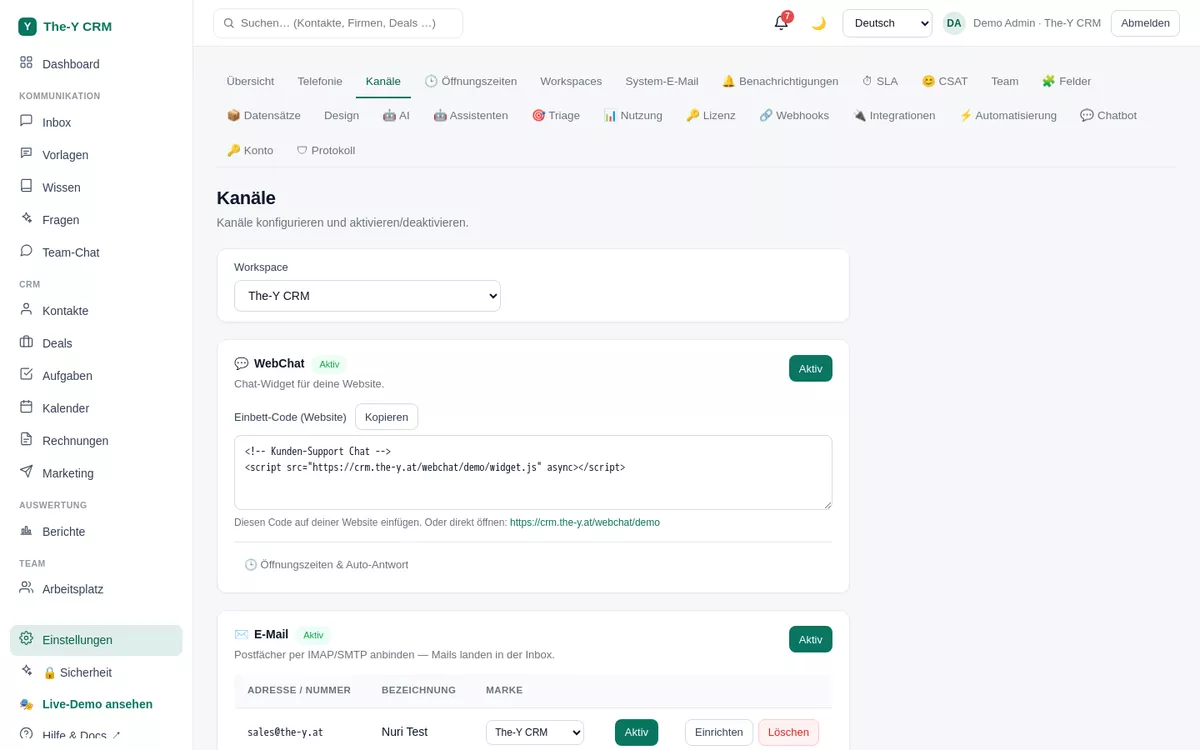
Settings → Channels — where you connect WhatsApp/Messenger/Instagram.
Before you start — what you need
A Meta/Facebook Business account (business.facebook.com).
For WhatsApp: a WhatsApp Business Account (WABA) with a phone number and the credentials from your Meta app (see below).
For Messenger/Instagram: a Facebook Page; for Instagram a professional account linked to that Page.
With your own Meta app, Meta's rules for your app apply — which permissions and access levels you need, e.g. for Instagram messages, comments or posting, is described in Meta's developer documentation. If you connect on crm.the-y.at with “Connect WhatsApp” or “Connect Facebook & Instagram” instead, you don't have to apply for anything at Meta yourself.
Part A · Set up WhatsApp manually
The default is “Connect WhatsApp” (one click, also with the WhatsApp Business app; for customers once Meta has approved our app). If you prefer to manage your WABA yourself in the Meta developer console, enter the values directly:
In Settings → Channels → WhatsApp → “Advanced (manual)”.
Enter the following values from your Meta app / WhatsApp setup:
Phone number ID (the ID of the number, not the number itself)
"Send test". The-Y sends the standard template hello_world to a number of your choice (e.g. your own phone). If it arrives, sending is set up correctly.
On the hosted version (crm.the-y.at) the receiving webhook is already wired platform-side — nothing more to configure. When self-hosting, you enter the webhook URL + verify token in your Meta app (see the self-hosting guide).
Part B · Connect Facebook Messenger & Instagram
In Settings → Channels, on the Messenger or Instagram channel click "Connect Facebook & Instagram" (default). With your own credentials choose “Set up manually (Page ID + token)” instead.
Select Page(s). After the Facebook login, the dialog shows your Pages (and the Instagram accounts linked to them). Pick the Page whose messages should land in The-Y.
Confirm. The-Y subscribes the Page and stores the Page token encrypted. Messenger and Instagram DMs as well as FB/IG comments now appear in the inbox; replies go to the customer through the connected Page.
No Facebook login window? Then "Login with the JavaScript SDK" is not enabled in your Meta app, or the domain isn't allow-listed. On the hosted version this is done; when self-hosting see the Meta app settings.
WhatsApp templates — for messages outside the 24-hour window
WhatsApp allows free text only within 24 hours of the last customer message. To write after that (or first), you need a Meta-approved template. You build it under Templates → WhatsApp templates in the builder with live preview or take one from the gallery — before submitting, the CRM checks the most common rejection reasons. All the details: WhatsApp templates & status.
24-hour window & consent
While the window is open you write normal text in the inbox. When it's closed, use “Send template” (search a template → check the values → send).
In the customer panel you control consent per channel. A contact unsubscribed from WhatsApp is excluded from "New chat" and from marketing.
If a reply doesn't arrive, the message shows “⚠ not delivered” with the reason — or “saved only, not sent” if the channel has no access.
Troubleshooting
190 Invalid OAuth access token / "token invalid"
The stored WhatsApp token has expired or is wrong. Use a permanent system-user token (expiry "Never") from your Meta app and enter it again. With the one-click path, simply run “Connect WhatsApp” again.
I'm not receiving any WhatsApp messages
Check: is the phone number ID correct (not the number itself)? Is the channel active? On the hosted version the webhook is set platform-side — but if your number is still subscribed to a different Meta app, nothing arrives. In that case unsubscribe the number in the old app and reconnect.
My Instagram account isn't shown in the connect dialog
The IG account must be a professional account (business/creator) and linked to the chosen Facebook Page. Check this in the Instagram settings, then connect again.
Own Meta app: Instagram DMs, comments or posting don't work
Your Meta app needs the matching Instagram permissions (e.g. instagram_manage_messages, instagram_manage_comments, instagram_content_publish) at the access level Meta requires for your case — otherwise they only run in developer mode. Meta sets the requirements. On crm.the-y.at with “Connect Facebook & Instagram” this doesn't affect you.
A reply shows “saved only, not sent”
The channel has no valid access to Meta. Check the token or Page token, or reconnect the channel — then send the reply again.